Il Matto: Common Problems & Fixes
A symptom-first debugging guide for the Il Matto AVR board. Find the symptom that matches what you're seeing and click it to jump to the fix, or type an error message into the search box. Tick off steps as you go; your ticks are remembered in this browser.
Symptoms
avrdude: command not found / not recognised→ D · Install avrdude (Win / Mac / Linux)
C232HM shows as FTDI / USB-Ser in Zadig when flashing the bootloader→ C · Set the cable to WinUSB
Everything else works, but I can't send Serial messages through the C232HM→ E · Install FTDI drivers
No COM port appears for the C232HM→ E · Install FTDI drivers
Not sure which driver goes on which device?→ Driver cheat sheet
No symptom matches that. Try the quick diagnosis below, or browse the sections.
Not sure? Quick diagnosis
AVRDude says “Broken Pipe”
I plugged in my Il Matto and tried running AVRDude, and it says “Broken Pipe”.
- Press the reset button. The green LED should not light up when you first plug in, and should light up after you press reset. That means the bootloader is ready to be programmed.
- Check the jumper and the switch. The jumper next to the LED must be on
USR, notPWR. The power switch must be onUSB, notEXT.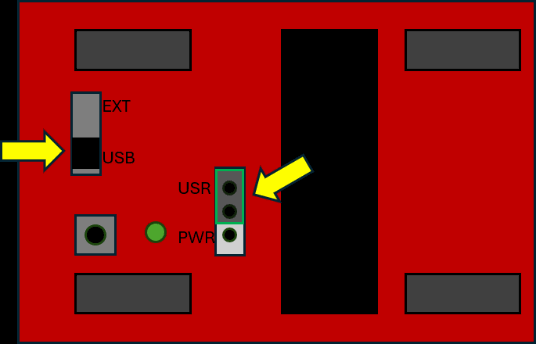
Switch → USB · Jumper → USR
Why? What the jumper and switch actually do
The jumper selects what controls the LED.
- USR: the LED is connected to pin
PB7, which the bootloader turns on when it's ready to accept programming signals from USBasp. If the LED is blinking as soon as you power on, you've probably uploaded a program that uses PB7. - PWR: the LED turns on whenever the board is powered (i.e. the 3.3 V rail is active). This helps when debugging power problems, but it's no use for solving driver problems.
The EXT/USB switch selects external power pins or USB. The external battery connectors are usually disconnected, so you can use this switch as a quick power-cycle switch.
LED never lights and the board shows as “Unknown Device”? Go to C · Install the bootloader.
In bootloader mode, but programming still fails
I plugged in, pressed reset, and my Il Matto is in bootloader mode (LED on), but programming still fails.
Check your Zadig configuration. Open Zadig, choose Options → List All Devices if needed, and select USBasp.
- Set USBasp to WinUSB. USBasp is used for programming, so it needs the
WinUSBdriver. If it shows something likeusb-serorSerial, it has the wrong driver. PickWinUSBand click Replace Driver.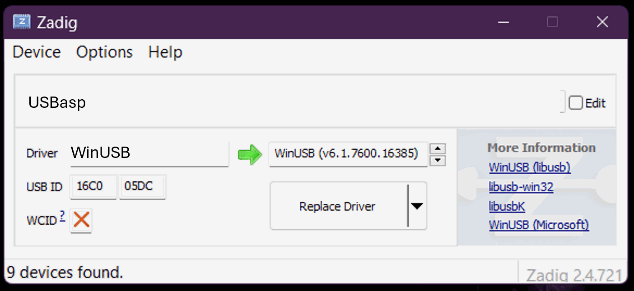
Correct: USBasp → WinUSB - On a USB 3.0 port and WinUSB doesn't work? Change the driver to
libusb0instead.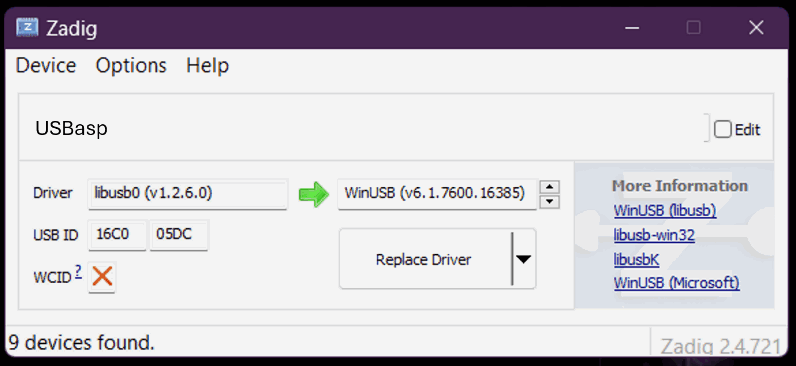
USB 3.0 alternative: USBasp → libusb0 (v1.2.6.0)
“Unknown Device” and no LED after reset
I plugged in, the Il Matto doesn't light up when I press reset, and it shows up as “Unknown Device” in both Zadig and Device Manager.
- Connect the C232HM cable to the ISP port, matching the wire colours shown below (pin 1 is marked on the board).
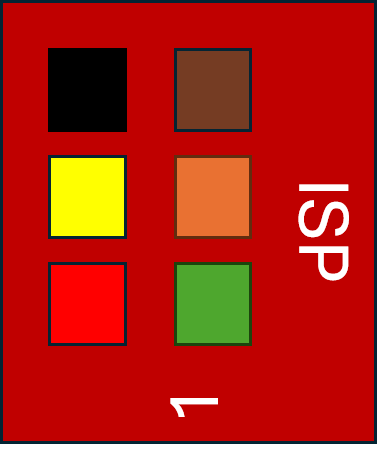
ISP header wire colours. Left column: black, yellow, red. Right column: brown, orange, green. - Put the C232HM in programming mode (WinUSB). In Zadig, if the cable shows up as
FTDIorUSB-Ser, change it toWinUSB. On a USB 3.0 port, try libusb0 if WinUSB doesn't work.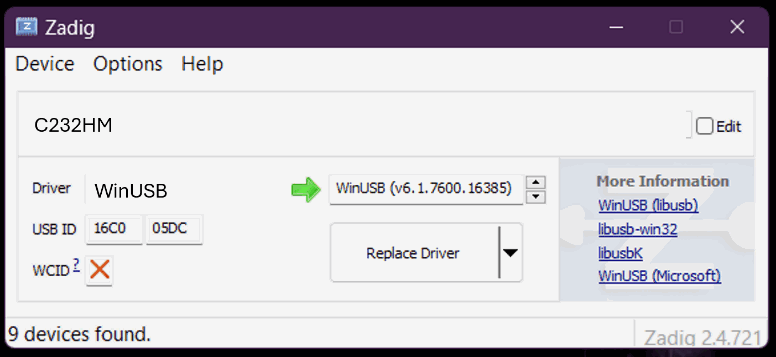
C232HM → WinUSB for programming - Download Automatto as a ZIP from github.com/ivanling92/automatto (Code → Download ZIP).
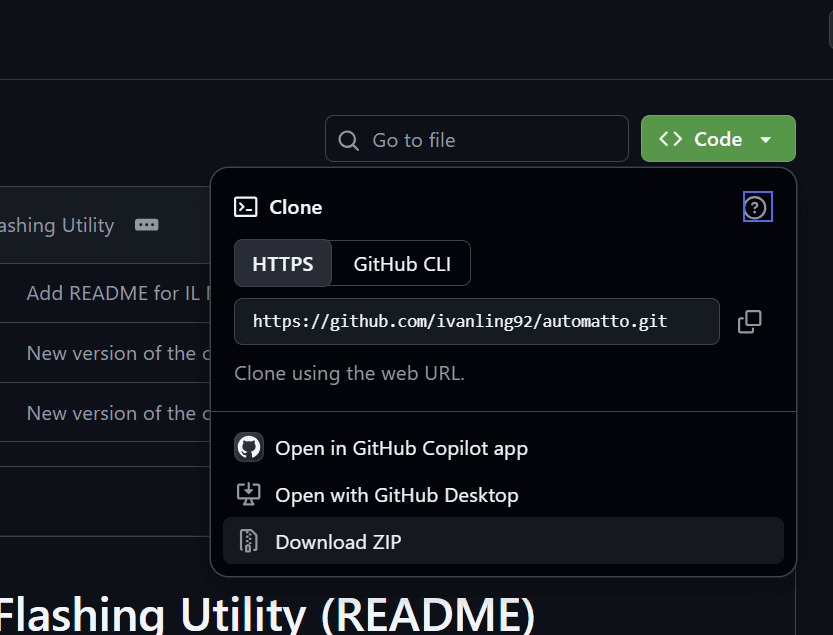
Code → Download ZIP - Unzip it and open a terminal in that folder. Type the command below and follow the on-screen instructions. You should see a green OK.
automatto
Automatto shows a red screen?
Fix whichever of these applies, then start again from step 1:
- Cables: check they're connected correctly. See the ISP colour map.
- Driver: check the C232HM driver is set to
WinUSB(orlibusb0on a USB 3.0 port). See step 2 and the USB 3.0 tip. - Toolchain: on a lab PC, make sure you've activated the AVR toolchain. On your own PC, make sure avrdude is installed. See D · Install avrdude.
Installing avrdude & the AVR toolchain
avrdude isn't recognised, or Automatto fails because the toolchain is missing.
Lab PCs: just make sure you've activated the AVR toolchain before running anything. Personal PCs: pick your OS below.
Download and install WinAVR from SourceForge (WinAVR 20100110).
- Install the Homebrew package manager
/bin/bash -c "$(curl -fsSL https://raw.githubusercontent.com/Homebrew/install/master/install.sh)"
- Install build and debugging tools
brew tap osx-cross/avr
brew install avr-gcc
- Install the AVRDUDE programming tool
brew install avrdude
sudo apt-get install gcc-avr binutils-avr gdb-avr avr-libc
sudo apt-get install avrdude
Not on Debian/Ubuntu? Use your distro's equivalent of these two commands. You're a Linux user, you can figure this out!
Can't send Serial messages through the C232HM
Everything else works, but I can't send any Serial messages through the C232HM cable.
- First make sure the C232HM is in WinUSB mode in Zadig.
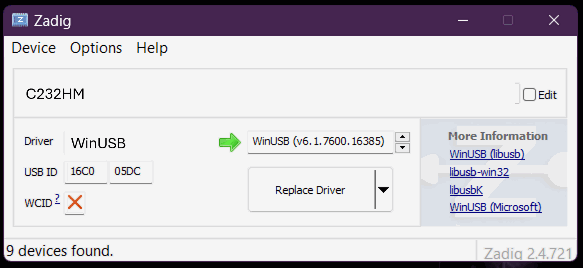
C232HM → WinUSB - Download the FTDI drivers for your system from ftdichip.com/drivers/d2xx-drivers.
- Unzip the folder.
- Open Device Manager and find your C232HM cable. It should be under Universal Serial Bus Controllers or USB Connector Managers. Double-click it.
- On the Driver tab, click Update Driver.
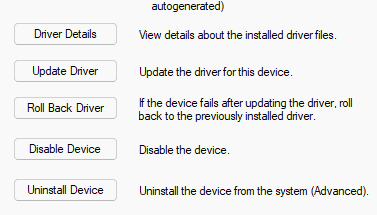
Driver tab → Update Driver - Choose Browse my computer for drivers and navigate to the folder you extracted.Important: select the whole folder, not one of its sub-folders.
- Let it install. The C232HM should now appear correctly under Ports (COM & LPT).
Driver cheat sheet
Which driver goes on which device, at a glance.
| Device (as seen in Zadig) | Used for | Driver | Details |
|---|---|---|---|
| USBasp | Programming the Il Matto over USB | WinUSBor libusb0 on USB 3.0 | B |
| C232HM | Flashing the bootloader (Automatto via ISP) | WinUSBor libusb0 on USB 3.0 | C |
| C232HM | Serial messages | WinUSB in Zadig, then FTDI driver via Device Manager → shows under Ports (COM & LPT) | E |
| Unknown Device | No bootloader on the chip | Don't install a driver. Reflash the bootloader. | C |